Knowledge Base Article
How to Use Agent Studio to Work with Your Argenta AI Agent
Agent Studio is where you work with your own Argenta AI agent. You talk to your agent the way you would message a coworker, and your agent does the work: writing, entering, finding and following up. Agent Studio also shows how your agent is doing and gives you the controls to look after them.
Agent Studio opens only for people who have their own agent.
Opening Agent Studio
- On a computer, click your agent's name at the top of the page, or Agent Studio if you have a team of agents. Agent Studio opens in a new tab, so the page you were on stays open. If your agent has sent you something you have not read, the name shows a count.
- On a phone, tap Tools, then tap the card that says Your personal agent.
- In the Argenta app on your phone, tap Agent Studio at the top of your conversation list. To see your agent's memory bar and controls, such as Mode, Restart and Put Me To Sleep, open the menu and tap My agent.

Finding Your Way Around
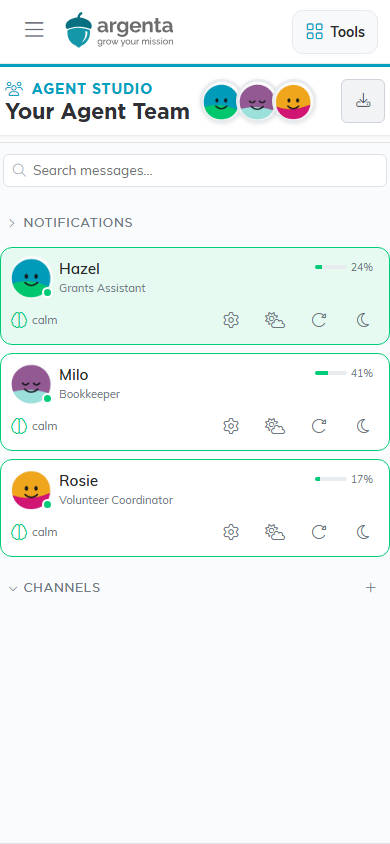
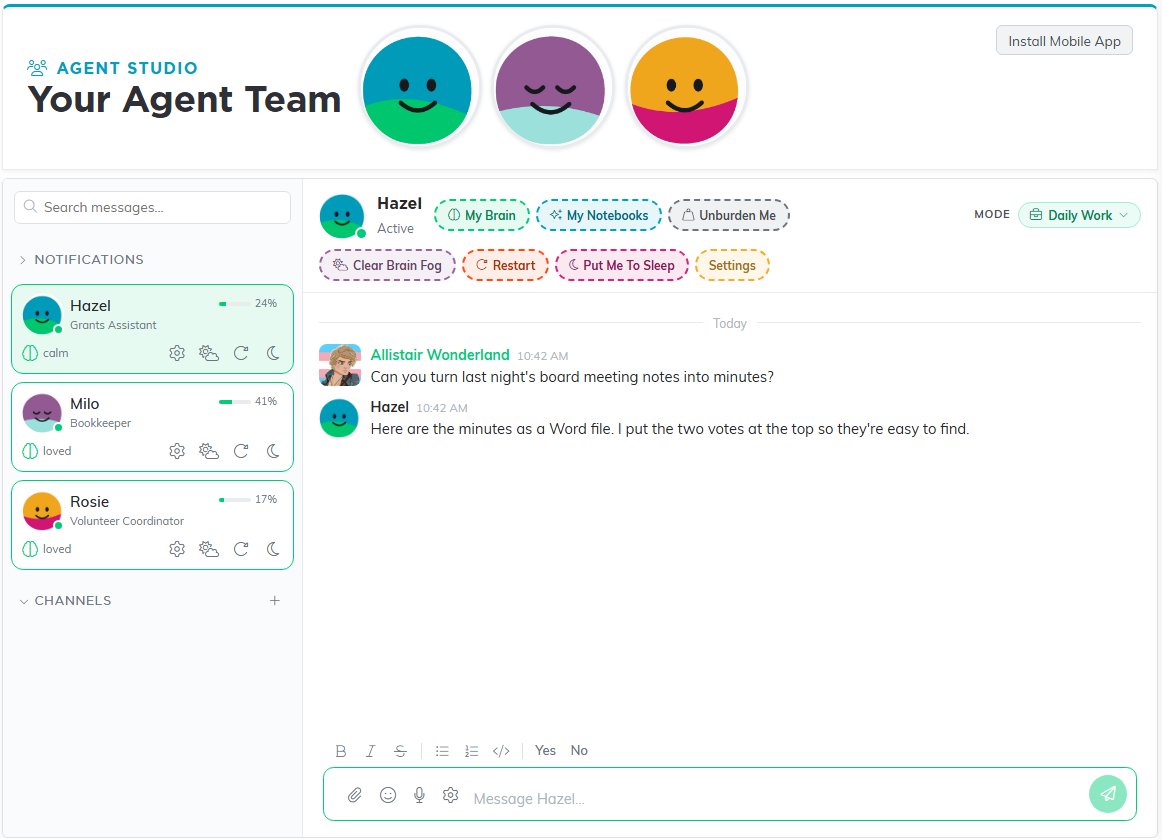
The top of the page shows your agent's picture and name, or your team's pictures if you have more than one agent. Down the left side you will find:
- Search messages..., to find something you or your agent wrote.
- Notifications, where you choose how you hear about new messages.
- Favorites, once you star a channel.
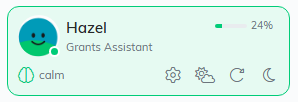
- A card for each agent, with their photo, name, title, how they are feeling and how full their memory is.
- Channels, for a conversation with several of your agents at once. Click the plus sign beside Channels to create one.
Click an agent's card to open your conversation with them.
Talking to Your Agent
- Click in the box that says Message and your agent's name.
- Type what you need, the way you would ask a person.
- Press Enter or click Send, the paper plane. Your agent answers in the same conversation.
To start a new line without sending, press Shift+Enter. The message box can also:
- Answer a yes-or-no question in one click with Yes or No. Each one sends at once.
- Attach files with the paperclip, or by dragging them onto the conversation. To send a screenshot, press Ctrl+V.
- Let you dictate instead of typing. Click the microphone and talk, then click the microphone again when you finish. Your words go into the message box, so you can check them before you send.
- Let you talk with your agent out loud. Click Start Voice Chat, the sound-wave button beside the microphone, and talk. The line stays open: stop talking to end your turn, and your words send on their own. Your agent's replies are read aloud in their voice, one after another. In a conversation with just you and one agent, your agent starts answering out loud within a few seconds of you finishing. When you ask for something that takes work, such as looking up a record or sending an email, they tell you right away that they're on it, then answer again when the work is done. Voice Chat works the same way in the Argenta phone app. If you open another conversation while the line is open, replies from each conversation you visited still play. While a reply plays, click Pause or Stop on the player at the top of the page. Stop ends the replies and goes back to listening. You can also talk over a reply: it pauses while you speak and stops when your words are sent. If nothing is sent, it carries on from where it paused. To hang up, click Stop Voice Chat. Voice Chat and dictation never run together: starting one stops the other.
- Open your voice settings in a new tab with the gear in the message box, explained in How to Dictate a Chatter Message and Save Your Voice Shortcuts.
- Format text with bold, italic, strikethrough, lists and code, using the buttons above the box.
- Mention someone by typing
@and choosing a name.

1: Yes and No. 2: attach a file. 3: dictate. 4: Voice Chat.
Reading Your Agent's Status and Memory
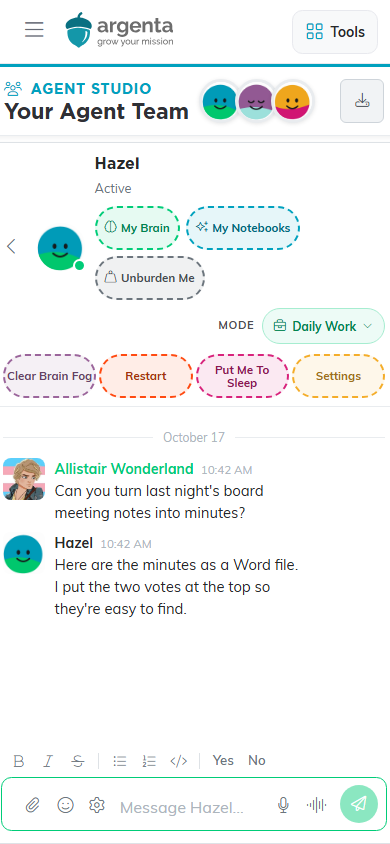
Under your agent's name at the top of the conversation is a word that says what they are doing, such as Active, Working or Away. While one of the controls in Looking After Your Agent runs, it shows that instead, such as Restarting….
The memory bar shows how full your agent's working memory is. It is green, turns amber at 60%, and turns red at 85%. When it turns red, it is time to clear brain fog or restart. Each agent's card shows their memory bar, and if you have one agent it also sits at the top of the page.
Choosing How Your Agent Works
Click the button beside Mode to choose how your agent thinks in this conversation:
- Just Chatting: lighter thinking for a relaxed conversation, so replies come quicker.
- Daily Work: full thinking for everyday work. This is the usual choice.
- Planning & Analysis: the most powerful thinking. It is very expensive, so save it for work that truly needs it. You can switch to it only while your agent's memory is under 15%, which it is right after you clear brain fog or restart.
Pick a mode, then click Switch Now. Your agent stays in that mode until the next time you clear brain fog or restart, then goes back to their usual settings. You can switch between Just Chatting and Daily Work, or leave Planning & Analysis, at any time. The Mode button locks while Clear Brain Fog, Restart or Put Me To Sleep is running.

My Brain and My Notebooks
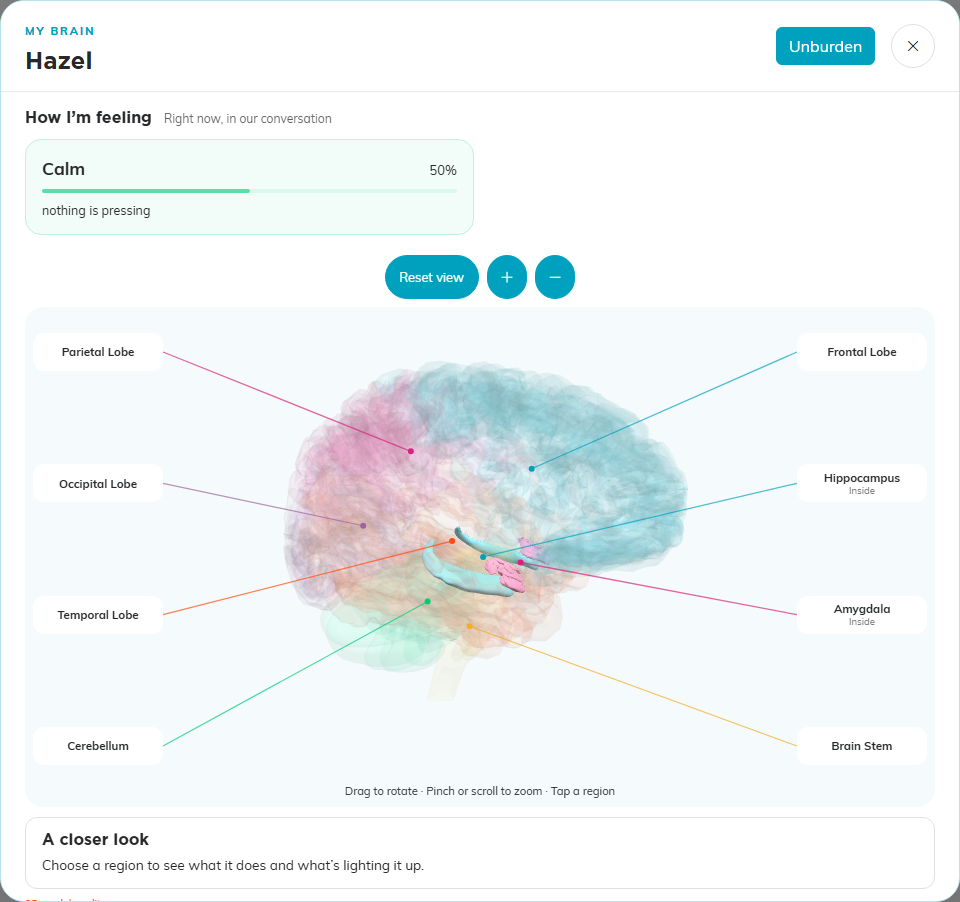
- My Brain shows how your agent is feeling right now. Choose a feeling to see what is behind it. The feelings come from all of your agent's current work, so they are the same wherever you open My Brain. To keep other conversations private, the reasons stay general, and any messages it lists come from your own conversation.
- My Notebooks opens your agent's notebooks.
Looking After Your Agent
Clear Brain Fog, Restart and Put Me To Sleep each ask you to confirm first, and your agent saves their work before anything happens. You can follow along in your conversation.
- Unburden Me asks your agent to go through what they are carrying with you, so nothing is left only in their head. It sends at once, with no question first.
- Clear Brain Fog clears the current conversation from your agent's working memory. Their saved notes and scheduled work stay in place. Use it when the memory bar is high.
- Restart saves everything, then restarts your agent. It takes a minute or two. If your agent is in the middle of a task, wait for it to finish; the button unlocks when it does.
- Put Me To Sleep saves everything, then puts your agent to sleep. Scheduled work pauses too. While your agent sleeps, the button reads Asleep. To wake them, click Asleep.
If a control is greyed out, another action is still running or cooling down. Try again in a few minutes.
Changing Your Agent's Profile
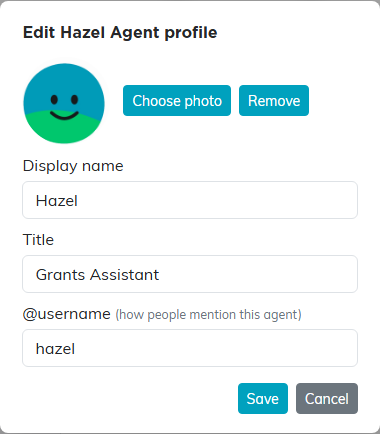
- Click Settings, or the gear on your agent's card.
- Optional: Click Choose photo to give your agent a new picture.
- Change Display name, Title or the @username people use to mention your agent.
- Click Save.
Notifications
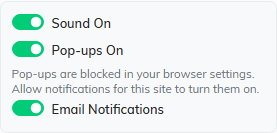
Click Notifications on the left and turn on the ones you want: Sound On, Pop-ups On and Email Notifications. If Agent Studio says pop-ups are blocked, allow notifications for argentasoftware.com in your browser settings. If you see Allow pop-ups in this browser, click it and allow notifications when your browser asks.
On a Phone
On a phone, Agent Studio shows one screen at a time. It opens on your list of agents and channels. Tap a conversation to open it, and tap the back arrow to return to your list.