Knowledge Base Article
How to Set Up Tables and Seat Guests at an Event
Event Seating is where you lay out the room for your event and decide who sits where. Draw the room to scale, place the tables, the stage, the bar and anything else the venue holds, then drag guests onto their chairs. The seating chart then gives the venue and the caterer every table, its guests and their meals.
Open Event Seating
Open the event and click Event Seating in the Participants/Guests group of the workspace menu. The page opens on the Diagram, a to-scale drawing of the room with your tables and chairs in it. Click Table List at the top right to see the tables as a list, and Diagram to come back.
Tables you made before, or add from the Table List, are already in the drawing when you open it: each new one is placed in a row as a 60" round with 8 chairs, or more if more guests are already seated there. Drag them to where they belong.
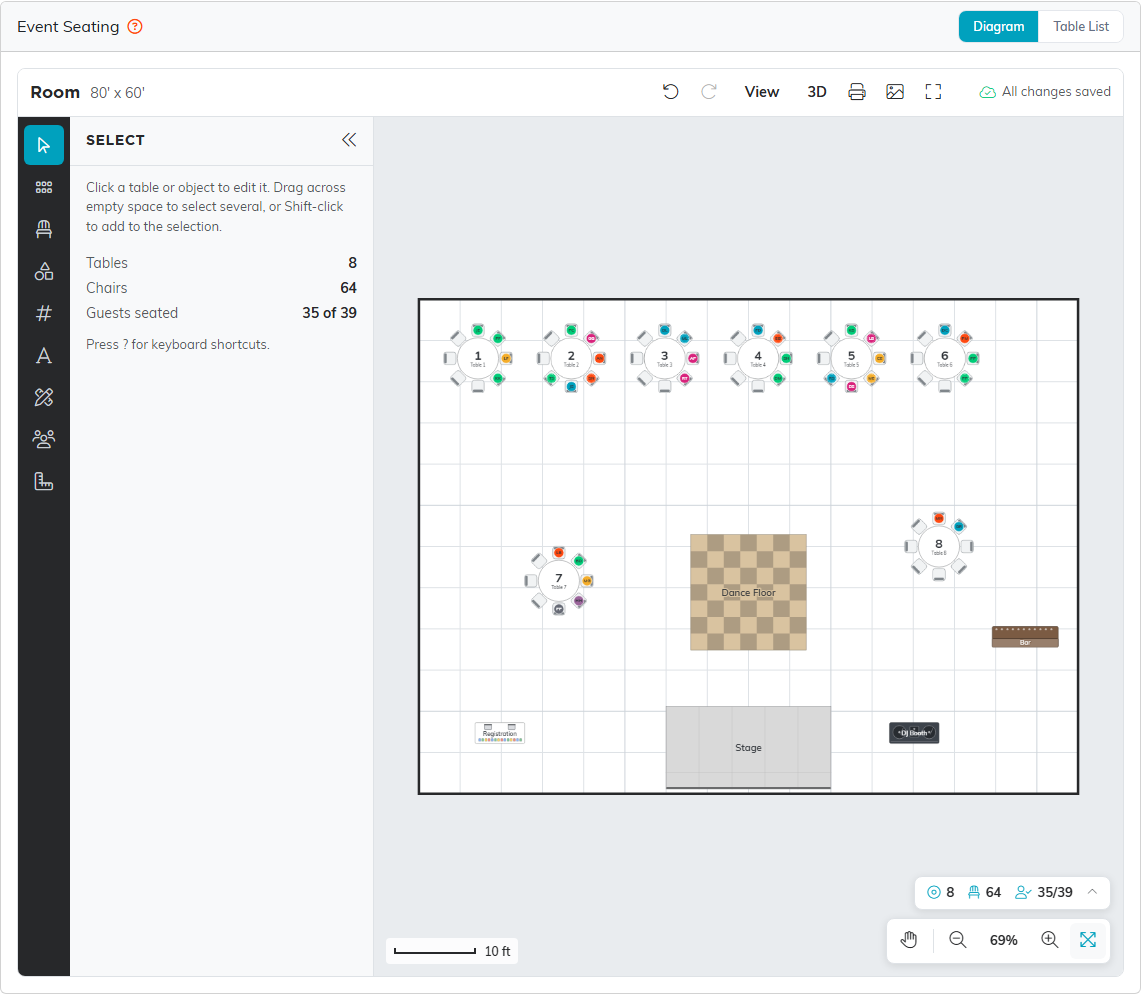
Eight tables around the dance floor, with the stage, bar, DJ booth and registration in place.
The tools run down the left edge: Select, Templates, Tables & Seating, Objects, Table Numbering, Text, Lines, Guests and Room. The counter at the bottom right shows your tables, chairs and guests seated; click it for a list of everything placed in the room. Press ? on the diagram to see the keyboard shortcuts.
To move around the room, scroll to go up and down, hold Shift while scrolling to go left and right, and hold Ctrl while scrolling to zoom in and out. When the room is larger than the window, scroll bars appear along the edges so you can drag it into view.
Set up the room
- Click Room, the last tool on the left.
- Give the room a Room Name, such as Ballroom.
- Enter its Width and Length, from 5 to 1,000 feet. A new room starts at 80 by 60 feet.
- Choose Feet & Inches or Meters.
Show Grid, Grid Size and Snap to Objects help you line things up. Hold Alt while you drag something to place it freely.
To trace the venue's own floor plan, click Upload Floor Plan and choose a PNG or JPG under 10 MB. Set its Real Width so it matches the room's scale, and use Opacity to fade it behind your tables. Turn off Locked to drag the plan into line with the walls, then turn it back on.
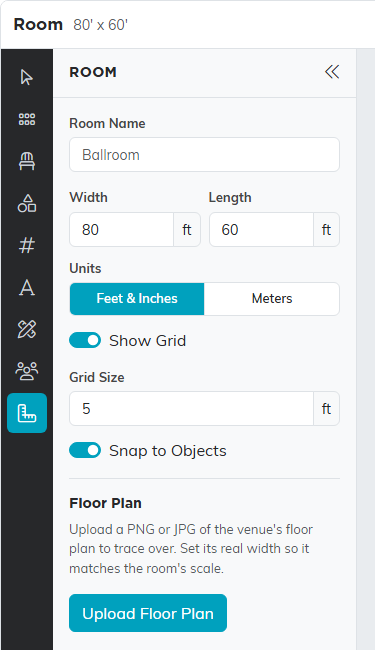
The room's name, size and grid, and the floor plan upload.
Use more than one room
An event can have more than one room, such as a ballroom for dinner and a terrace for the reception. Click the room's name at the top left of the diagram to see the event's Rooms, with how many tables each holds, and click one to open it. Each guest still has one seat for the whole event.
- Click the room's name, then Add Room. The Room tool on the left has an Add Room button too.
- Enter a Room Name.
- Under Start From, pick A Blank Room, or A Copy of a Room and choose the room to copy, from this event or an earlier one.
A copy brings the room's size, floor plan, objects and tables, but never its guests. Table numbers stay unique across the event, so a copied table whose number this event already uses takes the next free one.
To move tables to another room, select them and click Move To Room. Their guests move with them. Delete This Room deletes the open room and its tables, and unseats their guests, after you confirm. An event always keeps at least one room.
Add tables
- Click Tables & Seating on the left.
- Click a table, such as 60" Round or 8 ft Banquet, then click the room where it goes. You can also drag it onto the room.
Hold Alt as you click to keep placing copies. Each new table is named Table and the next number, and comes with its usual chairs: eight around a 60" round, ten around a 72" round, and so on.
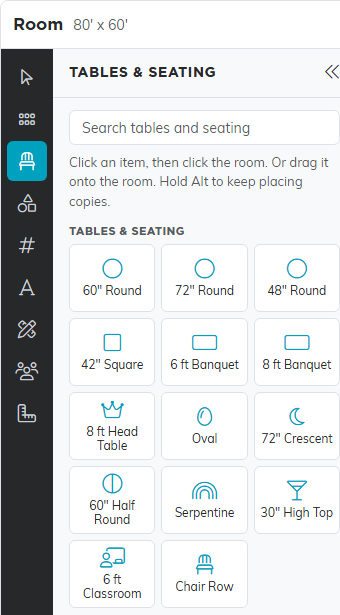
Every table shape, ready to place.
Fill the room from a template
A template lays out many tables at once. Click Templates and pick a layout: Aligned Rounds, Staggered Rounds, Banquet Rows, Classroom, Theater, Cocktail, U-Shape, Hollow Square or Conference. Then do one of these:
- Click and drag on the room to draw the area to fill.
- Set the table, chairs, rows and spacing, and click Add To Room.
- Enter a Seat Count and click Auto-Fill Room to fit that many seats in.
The panel shows how many tables and seats the layout makes before you add it.
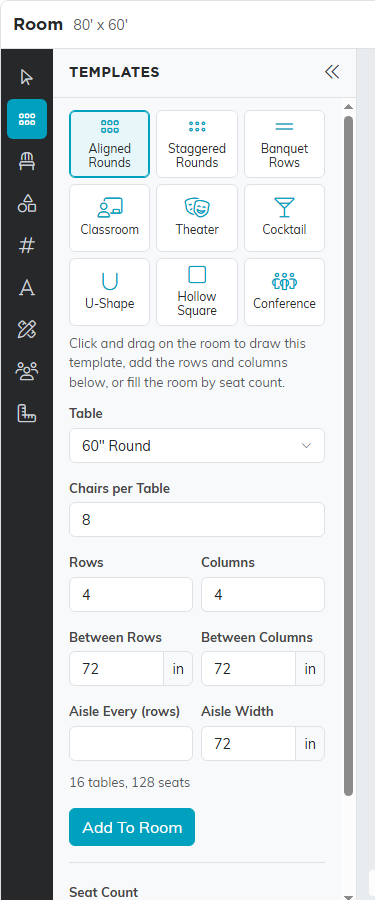
Four rows of four rounds make 16 tables and 128 seats.
Change a table
Click a table to open Edit Table. Change its Name, Number, Shape, size, Chairs, Chair Type, Linen color or Rotation here, and drag the table to move it.
Below that you see how many seats are filled and, under Guests at This Table, who sits in each seat. The buttons lock the table in place, bring it to the front, send it to the back, duplicate it or delete it.
A table's chairs are its seats, so Argenta won't take away a chair someone is sitting in. Move or unseat that guest first.
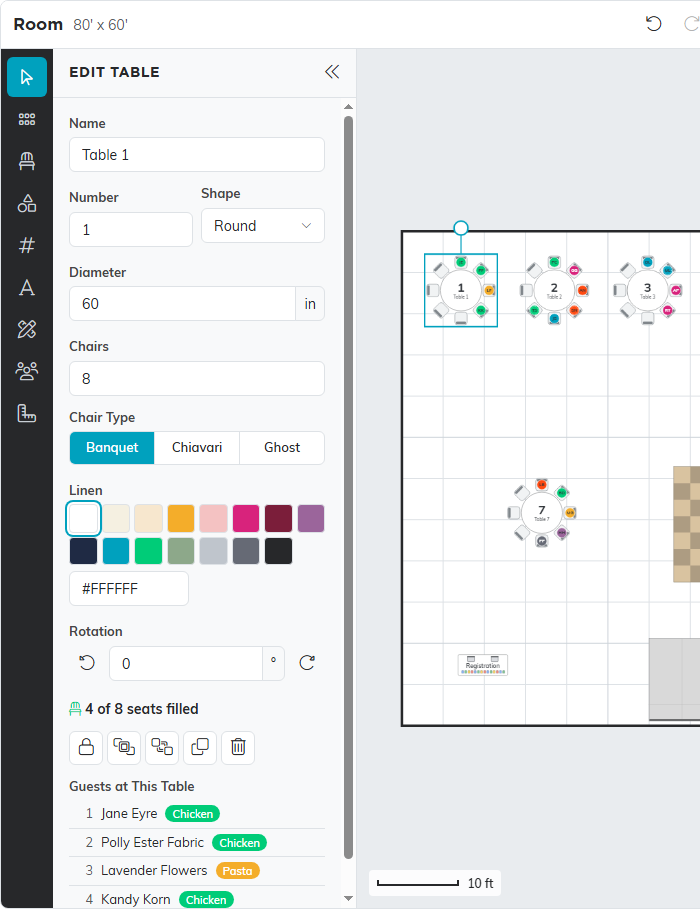
Table 1 has 4 of its 8 seats filled.
Add a stage, bar and more
Click Objects for everything else in the room: stages, dance floors and DJ booths; bars, buffets and food stations; screens and speakers; registration, silent auction and photo booth tables; doors, exits, pillars and walls; plants, sofas and rugs; and shapes for labeling. Place them the same way as tables. Text and Lines add your own labels and lines.
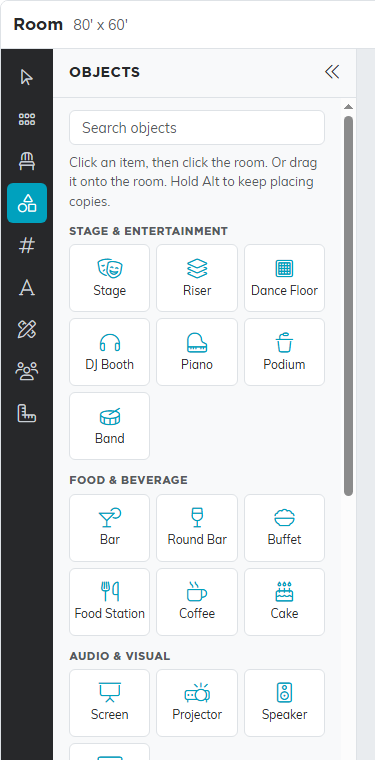
Stages, bars, screens and more.
Number the tables
- Click Table Numbering.
- Set Start Numbering At and choose Consecutive, Odds or Evens.
- Click the tables in the order you want, or press and drag a path through them. Each table takes the next number as you reach it.
Number By Position numbers every table from top to bottom and left to right instead. Skip Specific Numbers leaves out numbers such as 13, and Skip Numbers Containing leaves out every number with a given digit. A table named Table and a number is renamed to match its new number. Clear Numbering takes the numbers off. With several tables selected, Number By Position and Clear Numbering work on just those.
Two tables can't share a number unless you turn on Allow Repeat Numbers. Giving a table a number that's taken swaps the two tables' numbers.
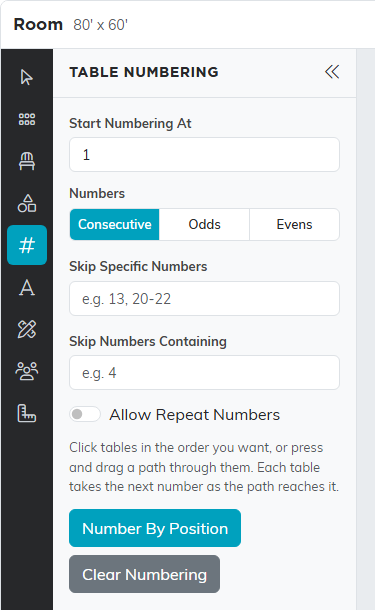
Click tables in order, or let Number By Position do it.
Seat guests
- Click Guests on the left. The list opens on Unseated: the guests still needing a seat, leaving out anyone who said they are not attending.
- Drag a guest onto a chair to give them that seat, or onto a table to give them its first free seat.
A guest bringing a plus-one takes two seats; the plus-one sits in the next free chair going clockwise. If the table doesn't have room, Argenta tells you and nobody is moved.
To move a guest, drag their chair to another seat. To unseat them, drag their chair back onto the guest list, or choose Unseat from the menu on their card. A chair someone is already in can't take a second guest.
Seated, All and Not Attending show the other guests, and the search box finds a guest by name, plus-one, email, meal or group. Each card shows the guest's meal, group, seat and reply.
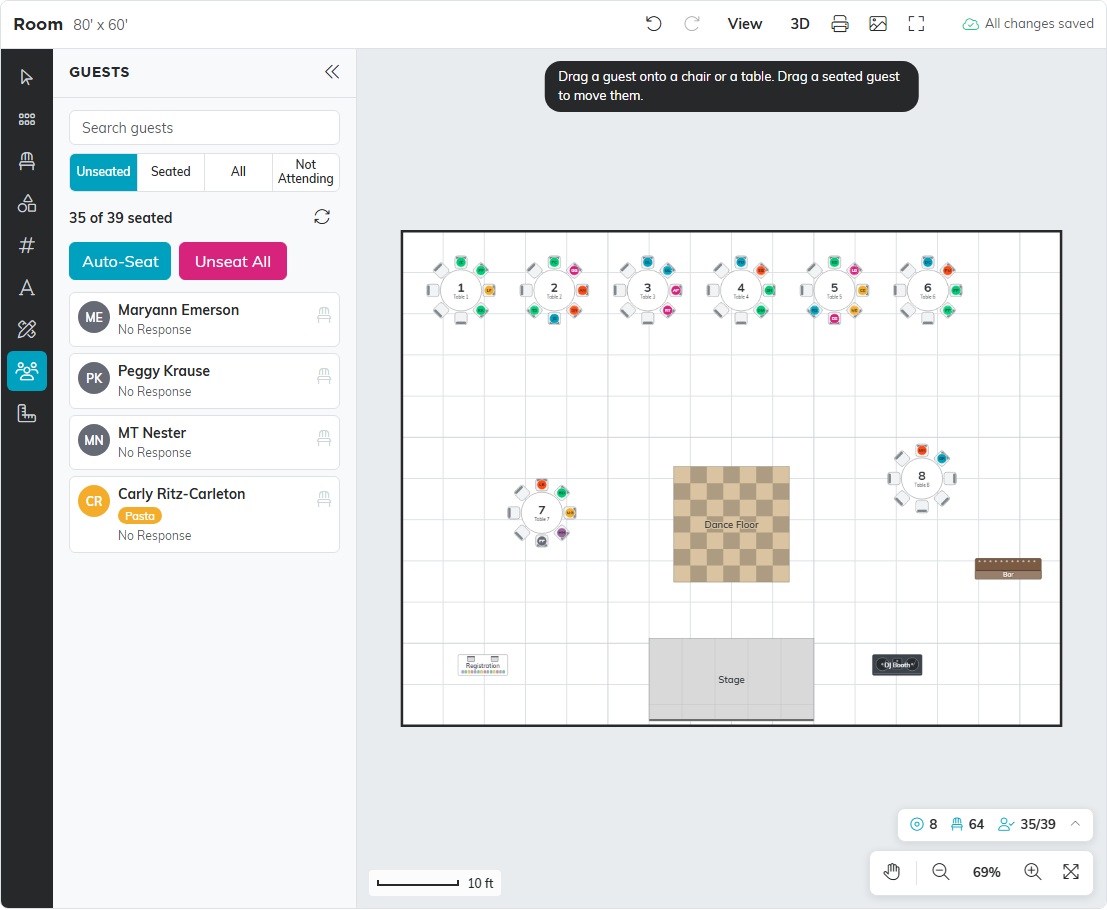
Four guests still need a seat.
Click Auto-Seat to seat everyone still waiting, at the tables in the room that's open. It keeps each guest group together at one table when a table has room for the whole group, keeps every guest with their plus-one, and fills the tables in number order. Guests who said they are not attending are left out, and anyone already seated stays put. Select some tables first and the button reads Auto-Seat Selected, to fill just those.
Unseat All takes everyone seated in the open room out of their seats after you confirm. Their registrations and tickets don't change.
How your changes are saved
There is no Save button. The diagram saves itself a moment after each change, and the top right reads All changes saved when it's done. Undo and redo cover your last 50 changes to the room. Seating a guest saves straight away and isn't part of undo.
If someone else changes the same room while you're working, the diagram stops saving and tells you. Click Reload to see their changes, then carry on.
View, print and share the room
View chooses what the drawing shows: table numbers, table names, chair numbers, object dimensions, the service perimeter, the grid, and whether chairs show each guest's initials, name or nothing. These choices are yours alone and are kept in your browser, so someone else working on the same room sees it their own way.
3D shows the room in three dimensions, with its tables and objects but not the guests. Print prints the room with a list of the equipment and the guests at every table, and Download Image saves the drawing as a PNG picture. The full screen button gives the drawing the whole window. Print and Download Image are there for team admins and for users who can export.
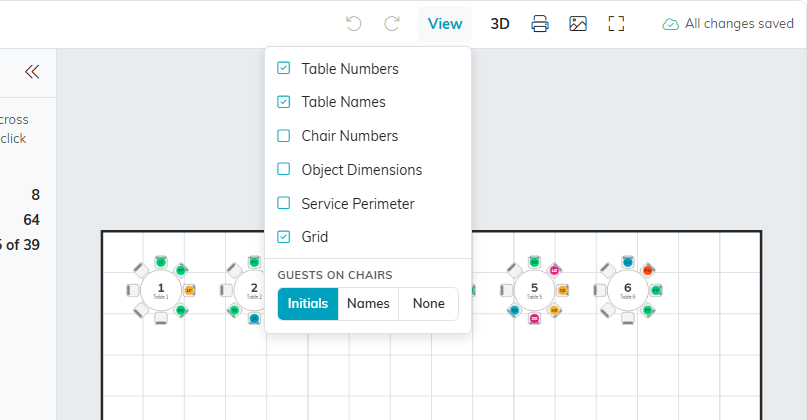
Choose what the drawing shows.
Who can change the seating
A user with view only access to events, or anyone looking at a locked event, sees the room and who sits where but can't move, add or seat anything. If you are limited to certain chapters, divisions, departments or precincts, a guest outside them shows as a gray Reserved chair: the seat is taken, but you can't see or move who is in it.
Use the Table List
The Table List shows each table with its description and how many guests are seated at it, and which room it is in when the event has more than one. Export To CSV downloads the list, and the search box finds a table by name or description.
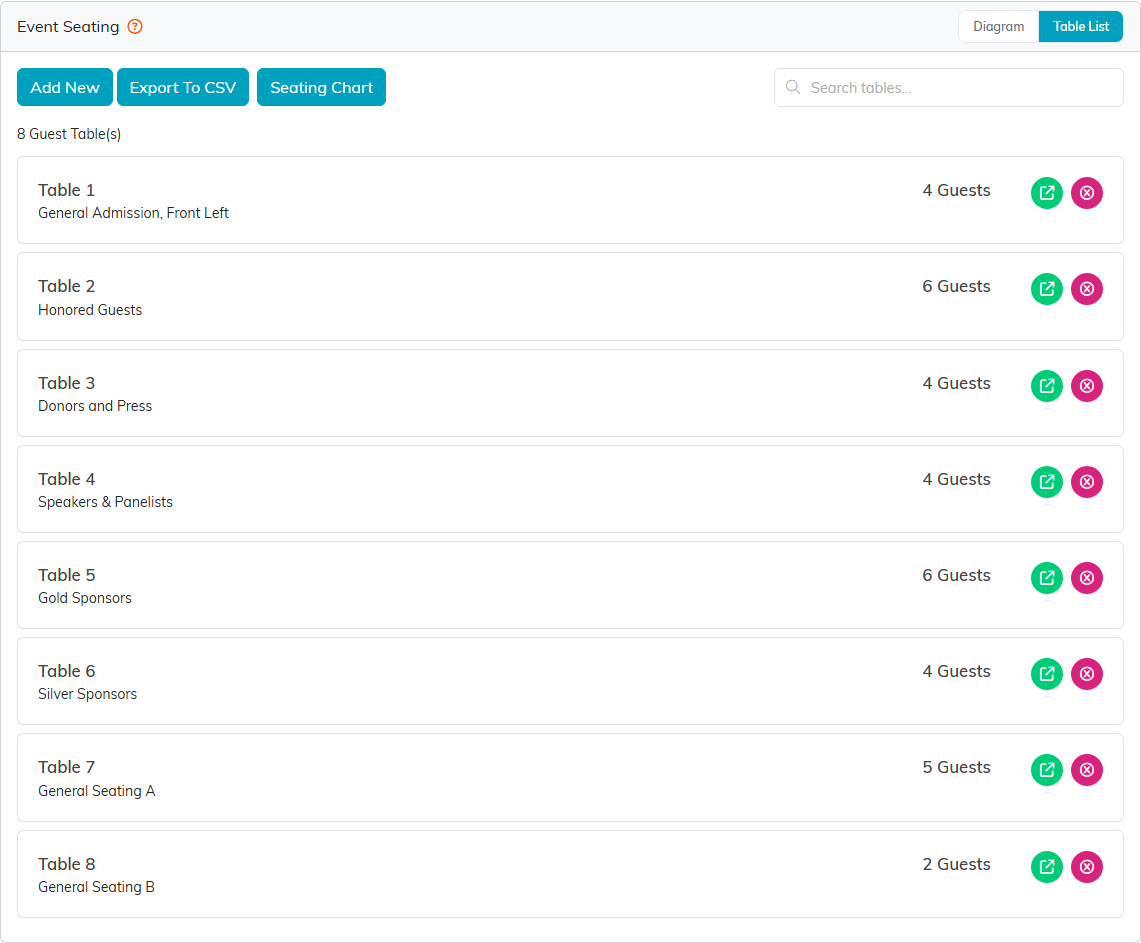
The same eight tables as a list.
To add a table here, click Add New, enter a Table Name and, if you like, a Table Description such as Gold Sponsors, and click Add This Table. Cancel closes the form without adding one.

A name and a description are all a table needs.
To seat guests from the list, click the green icon on a table, then Guests At This Table, then Add New. Tick the guests, or use Select All, and click Add Selected Guest(s). The picker lists the event's guests who aren't seated anywhere yet, so a guest sits at one table at a time. The count is seats, not people listed: a guest with a plus-one takes two.
Seating from the Table List doesn't check the table's chairs, so it can put more people at a table than it holds. Use the diagram when space is tight.
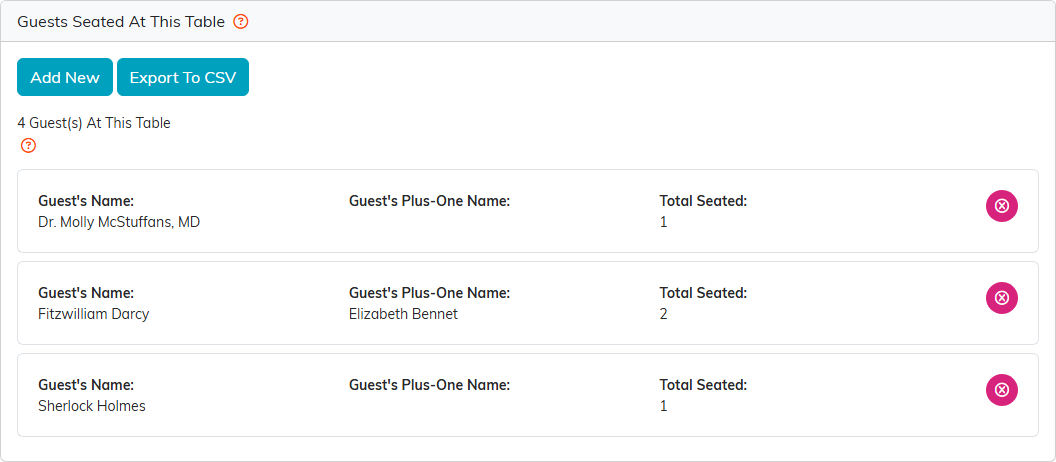
Three guests and one plus-one make four seats.
Print the seating chart
On the Table List, click Seating Chart. It opens a report of every table with each guest and the meals they chose. A seated guest who has RSVP'd and answered NO to Will This Guest Attend? keeps their place, marked (not attending) with no meal, and is not counted in the guest total. Export To CSV and Export To PDF give you a copy for the venue and the caterer.
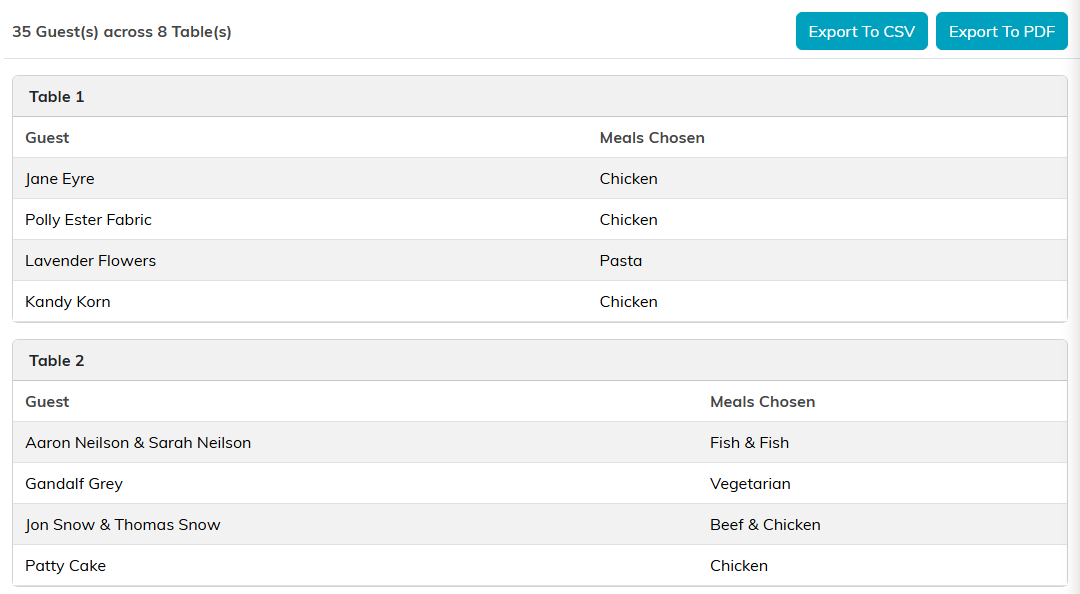
Every table, every guest and every meal on one page.
Remove a table
Select a table on the diagram and press Delete or click its trash button, or click the pink icon on the Table List. Argenta asks you to confirm. The table's guests are not deleted; they are unseated and go back on the guest list for another table.
For meals, see How to Offer Meal Choices at an Event.